Win+V on Linux: Windows-style clipboard history on Ubuntu
Pressing Super+V on Ubuntu opens GNOME's notification list, and Ubuntu has no clipboard history at all. One gsettings command frees the key without losing the notification shortcut, and a clipboard manager goes behind it. Plus an honest comparison with Windows' Win+V, including the things Linux doesn't match.
On Windows, Win + V opens a list of the last things you copied. Press the same keys on Ubuntu and you get GNOME's notification list instead. There is no clipboard history on Ubuntu at all — not in 24.04 LTS, not in 26.04 LTS — and the key Windows users reach for first is already taken.
(For the rest of the Windows keys, Windows shortcuts on Ubuntu maps them all.)
Both problems are fixable in about two minutes. This page covers freeing Super + V on GNOME, putting a clipboard history behind it, and an honest comparison with what Windows gives you, because a few things Win+V does have no equivalent here.
What Win+V actually does on Windows
Worth pinning down, because "Windows-style clipboard history" means something specific. From Microsoft's own page:
- It keeps 25 entries. Older unpinned items are dropped to make room.
- Each entry can be up to 4 MB, and text, HTML and bitmaps are supported.
- You can pin an entry so it stays.
- The history is cleared every time you restart, except for pinned items.
- It can sync across your devices through a Microsoft account.
It is switched off by default; the first Win+V offers to turn it on.
What Super + V does on Ubuntu instead
GNOME binds Super + V to the notification list, and it binds Super + M to the same thing. You can see both on your own machine:
gsettings get org.gnome.shell.keybindings toggle-message-tray
On Ubuntu 26.04.1 LTS that prints ['<Super>v', '<Super>m']. Because the notification
list already has Super + M, giving Super + V to something else costs you nothing.
Step 1: free Super + V
Keep Super + M for notifications and release Super + V:
gsettings set org.gnome.shell.keybindings toggle-message-tray "['<Super>m']"
It takes effect immediately, with no logout. To undo it later:
gsettings reset org.gnome.shell.keybindings toggle-message-tray
Step 2: put a clipboard history behind it
Clipmer is ours, so weigh this section accordingly.
curl -LO https://github.com/0x99M/clipmer/releases/download/v3.6.3/clipmer_3.6.3_amd64.deb
sudo apt install ./clipmer_3.6.3_amd64.debOpen it with Ctrl + Shift + D, then go to Settings → Shortcuts → Toggle window, click the shortcut, and press Super + V. Settings answers Saved. Uses the GNOME shortcut on Wayland. — Clipmer registers the combination with GNOME itself, so it works on Wayland, the only session Ubuntu 26.04 offers, without you adding a custom shortcut by hand.
From then on:
- Super + V opens the history.
- ↑ / ↓ move through it, or start typing to search.
- Enter puts the entry back on the clipboard and closes the window.
- Esc closes it without choosing anything.
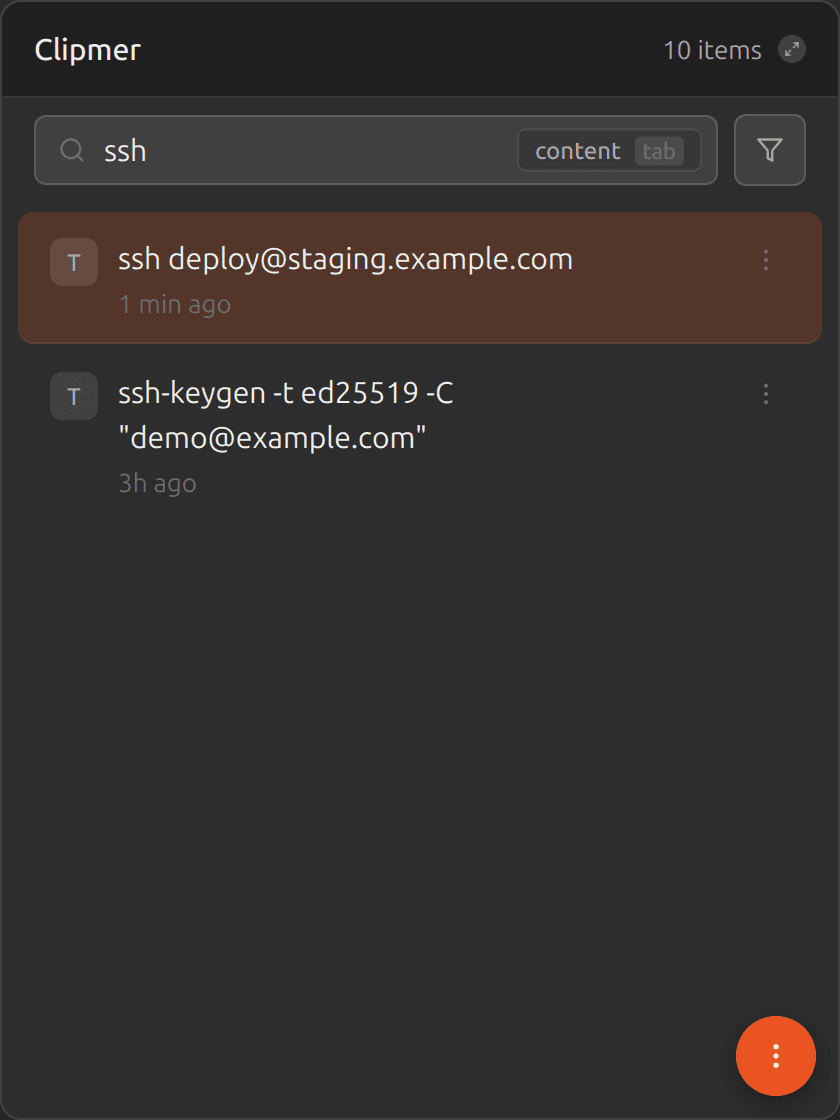
If you also want Enter to paste straight into the window you came from, the way Windows does, turn on Settings → General → Auto-paste on select. It works on GNOME through a small helper extension, and it needs one logout and login the first time. Why your clipboard manager won't paste on Wayland explains what that helper does and why it is off by default.
How it compares with Win+V
| Windows Win+V | Clipmer, free | Clipmer Pro | |
|---|---|---|---|
| Entries kept | 25 | 100 | 200 |
| After a restart | Only pinned items survive | Everything survives | Everything survives |
| Keeping an item for good | Pin it | — | File it in a folder |
| Hide a sensitive entry | — | Yes | Yes |
| Images | Yes | No, text only | No, text only |
| Sync between devices | Yes, via Microsoft account | No | No |
| Paste on select | Yes | GNOME only | GNOME only |
The rows where Windows wins are real, and you should know about them before switching:
- Images. Clipmer records text only. That was a deliberate trade — image history was the largest source of memory use, and it went in 3.0.4 — but if you copy screenshots between apps all day, it's a gap.
- Sync. Clipmer never uploads anything, so there is nothing to sync through. That is the point for a lot of people and a dealbreaker for others.
- Pinning on the free tier. Clipmer's equivalent of pinning is folders, which are part of Pro ($9 once). Free entries stay until 100 newer copies push them out.
And where Linux comes out ahead: the history doesn't evaporate when you restart, it is four times the size before you pay anything, and you can hide individual entries — a password, an API key — so they show as dots if you open the list while sharing your screen.
On KDE Plasma, Meta + V is already a clipboard
Plasma ships a clipboard history, and Meta + V (the same key as Super) opens it at the mouse pointer. If you are on Kubuntu or another Plasma distribution, you already have the Windows behaviour. If you would rather use Clipmer there, choose a different shortcut in its settings — binding it to Meta + V as well would put two clipboards on one key.
Other ways to get there
If you'd rather use something open source, or want an extension that lives in the top bar, clipboard history on Ubuntu covers the GNOME Clipboard History extension, GPaste and CopyQ, with install commands checked on both LTS releases. Step 1 above applies to any of them: free Super + V first, then point it at whichever one you choose.