Screen sharing with a clipboard manager: how not to show your secrets
Open your clipboard history during a screen share and everyone sees every password, token and address you copied today. Habits that help with any tool, how hiding individual entries works in Clipmer — masked in the list, out of search, behind Reveal in the viewer — and, just as plainly, what hiding does not protect.
It goes like this. You're sharing your screen on a call, someone asks for the staging URL, and you open your clipboard history to find it. For two seconds, everyone on the call sees everything you have copied today: the database password from this morning, a personal access token, a customer's email address, the SSH command for a box that isn't supposed to exist.
Nobody screenshots it, probably. But a recorded call keeps it, and you can't take it back. This isn't a Linux problem; it comes with any clipboard history. When Apple added one to Spotlight in macOS Tahoe, the very next update, 26.1, added a switch to turn it off, a button to clear it and an expiry timer, and Macworld's write-up framed all three as answers to a privacy risk.
Turning it off is one answer. This page is about the other one: keeping the history and choosing what it shows.
Why a clipboard history is the worst thing to have on screen
Most of what you share on a call is something you chose to share: a document, a terminal, a browser tab. A clipboard history is the opposite. It's a list of everything you moved around today, including the things you moved precisely because they were too sensitive to type — passwords pasted from a password manager, keys pasted into a config file, tokens pasted into a header.
It's also the window you open on reflex, in a hurry, while someone is waiting. That combination is why it leaks.
Habits that help with any tool
None of these need a particular clipboard manager:
- Share a window, not your screen. GNOME, KDE Plasma and every browser-based meeting tool let you pick a single window. A clipboard popup that opens over a different window isn't captured at all.
- Clear the history before a planned demo. Most clipboard managers have a clear button; remember what it keeps (see below).
- Treat a leak as a leak. If a token or password was visible on a recorded call, rotate it. Blurring the recording afterwards doesn't un-share the live stream. Replacing a key without breaking anything has the safe order.
Hiding individual entries
Clearing everything before every call throws away the useful history along with the dangerous part. What you actually want is for the dangerous entries to stop showing, while the rest stays.
Clipmer is ours, so weigh this section accordingly. It was built around exactly this, and the feature is free:
curl -LO https://github.com/0x99M/clipmer/releases/download/v3.6.3/clipmer_3.6.3_amd64.deb
sudo apt install ./clipmer_3.6.3_amd64.debOpen the history with Ctrl + Shift + D, open an entry's ⋯ menu, and choose Hide. From then on that entry:
- Shows as a fixed row of dots in the list. Always the same ten dots, so the length of the secret doesn't leak either.
- Is left out of search. Typing
passortokenwhile sharing can't bring it back up as a result. - Opens masked in the full-content viewer. The viewer says Masked and shows nothing until you press Reveal, and it withholds the character and line counts while masked — the shape of a secret is often enough to identify it.
- Still pastes normally. Choose it and its real contents go on the clipboard. Hiding changes what's on screen, not what the entry does.
Choose Unhide from the same menu to reverse it.
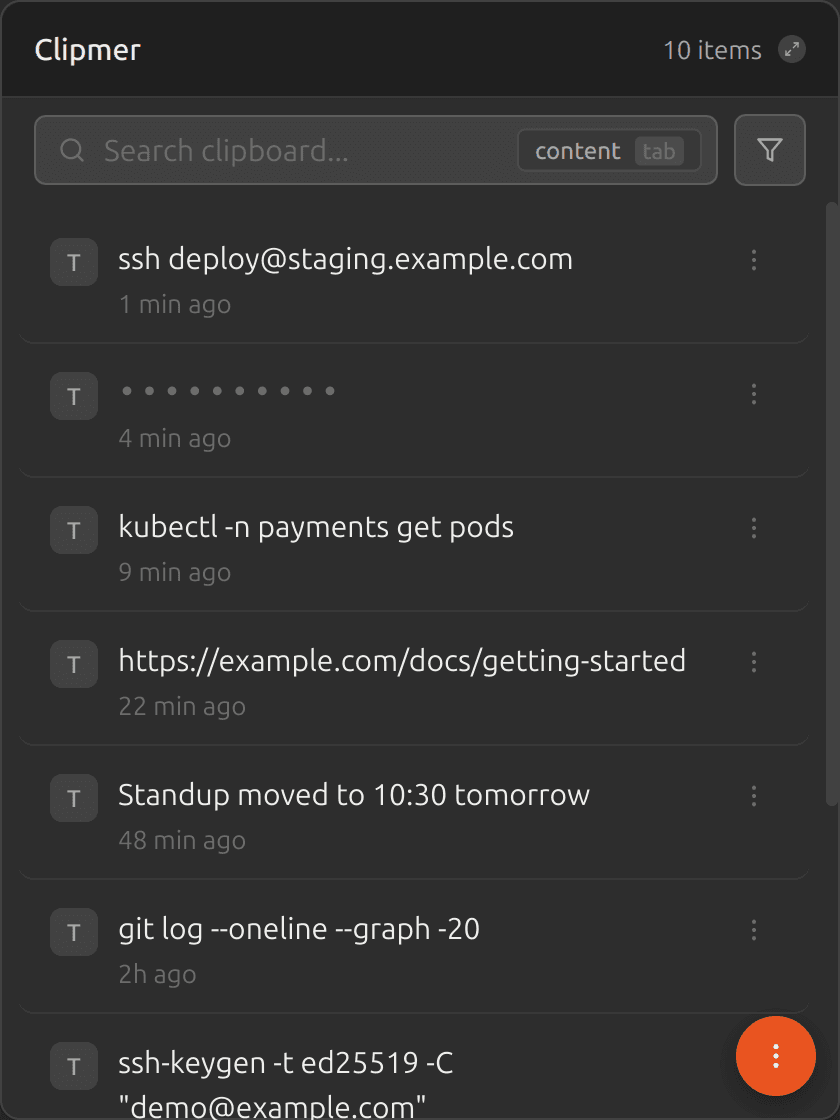
The window gets out of the way
Two smaller things matter more than they sound:
- Clipmer's window hides as soon as it loses focus. Click back into your meeting or your editor and it's gone, rather than staying pinned on top of whatever you are sharing.
- The viewer and the ⋯ menu close with it. Re-open the window mid-call and you get the list, not whatever entry you had open last time.
What clearing keeps
Clear history in Settings, and Clear Unsaved History in the tray menu, wipe everything except entries you have filed in folders. Folder entries are the ones you chose to keep, so they survive on purpose — which means a password you once filed in a folder survives too. Hide it, or delete it individually from its ⋯ menu. Folders are also how a snippet outlives the entry limit — using clipboard history as a snippet library covers that side of them.
Clearing also doesn't clear the system clipboard. Whatever you copied last is still what Ctrl+V pastes; clearing the clipboard on Linux covers emptying that too.
What hiding does not do
Being clear about the limits is the point of a feature like this:
- It isn't encryption. A hidden entry is stored exactly like any other, in plain text in
~/.config/clipmer/clipmer-data.json. Hiding protects against someone watching your screen, not someone with access to your files. - It isn't automatic. You hide entries yourself. Password managers mark the passwords
they copy with a hint (
x-kde-passwordManagerHint), and some clipboard managers, Klipper and CopyQ among them, use it to skip those entries entirely. Clipmer doesn't read that hint yet. Clipboard managers that save passwords goes through which ones do. - It doesn't stop you pasting. If you press Ctrl+V in the window you're sharing, the secret appears there, hidden entry or not.
We audited this feature ourselves after shipping it, found that the full-content viewer used to bypass it entirely, and wrote up what we found.
If you don't want a history at all
That's a reasonable choice, and switching it off — what macOS 26.1 now offers — is the honest version of it. You lose the ability to get back the thing you copied five minutes ago, which is the reason people install a clipboard manager in the first place. If you'd rather keep that, what you can still get back without one is shorter than most people hope.