Stop retyping the same commands and replies on Linux
Shell history, aliases, editor snippets, text expanders like espanso and a clipboard history each solve part of retyping the same commands, addresses and replies. Where each one stops, and how to use a clipboard history as a snippet library that keeps the things you reuse.
Some text you type a dozen times a week: the SSH command for the staging box, the
git incantation you never remember the flags for, your company's address, a reply you
send to every new support ticket, the hex value of the brand colour. Each time you either
retype it, or go hunting for the last place you used it and copy it from there.
Linux has several tools that fix part of this. Each fixes a different part, and it's worth knowing where each one stops before you pick one.
The tools you already have, and where each one stops
| Tool | Good for | Where it stops |
|---|---|---|
| Shell history (Ctrl+R) | Commands you have run | Only in that shell, only on that machine |
| Aliases and functions | Commands you run constantly | Only commands, and you edit a dotfile to add one |
| Editor snippets | Code you write repeatedly | Only inside that editor |
| Text expanders | Typed abbreviations that expand anywhere | Setup on Wayland; you define every snippet up front |
| Clipboard history | Anything you have copied, in any app | Only what you copied; free tiers forget eventually |
Shell history is the best tool for commands and costs nothing. Ctrl+R and a few letters search everything you've run; pressing Ctrl+R again steps to older matches. It stops at the shell, though — it can't give you the reply you pasted into a ticket, or a command you ran on a different host.
Aliases turn a command you run every day into one word. They're the right answer for the handful of commands you use constantly, and overkill for the fifty you use monthly.
Text expanders such as espanso type out a snippet when you type its trigger, in any application. They're the most powerful option on this list, with placeholders and dates. On Wayland they need more setup: espanso has a separate Wayland build and needs an extra capability granted to its binary so it can read and type keys. And you have to decide what's a snippet before you need it.
A clipboard history works the other way round. You don't define anything — every time you copy something, it's already saved, and the things you reuse are the things you've already copied.
Using clipboard history as a snippet library
Clipmer is ours, so weigh this section accordingly.
curl -LO https://github.com/0x99M/clipmer/releases/download/v3.6.3/clipmer_3.6.3_amd64.deb
sudo apt install ./clipmer_3.6.3_amd64.debThe daily loop is three keys:
- Ctrl + Shift + D opens the history over whatever you're doing.
- Type a few letters —
ssh,rebase,Dear— and the list filters as you type. You don't have to click into the search box first; any letter goes straight there. - Enter puts it on the clipboard and closes the window.
Two details make this work as a library rather than a pile:
- Re-copying doesn't duplicate. Copy the same command again and the existing entry moves to the top, so what you use often stays near the top and the list stays a list of different things.
- Search covers the whole entry, not just its first line, so a multi-line reply turns up from a word in the middle of it.
The free version shows your last 100 copies, permanently. For things you reuse weekly, that's usually enough: anything you copy regularly keeps moving back to the top.
Keeping snippets for good
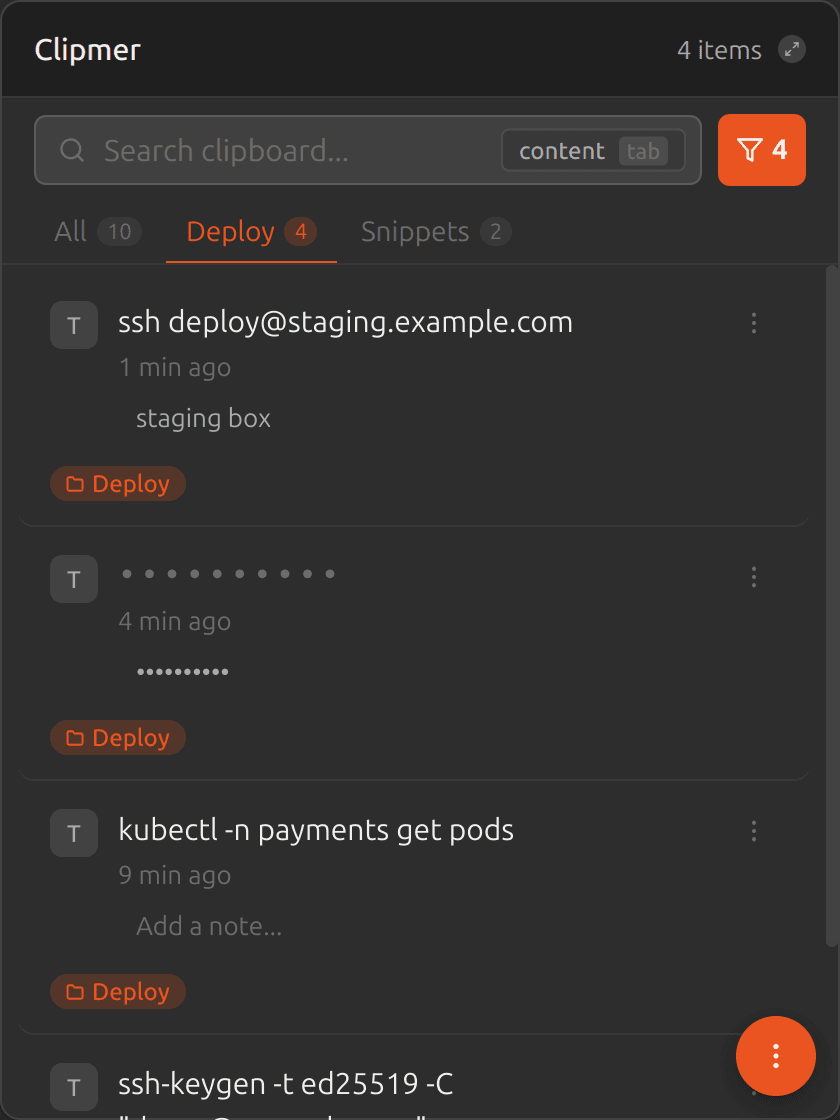
The weakness of a plain history is the reply you send once a month. A hundred copies later, it's gone. That is what Clipmer's folders are for, and they're part of Pro ($9 once):
- File an entry from its ⋯ menu with Add to folder. Filed entries are exempt from the history limit and from Clear history, so they stay until you remove them.
- Folders appear as tabs above the list, each with a count, and Shift + Tab cycles through them from the keyboard.
- Add a note to an entry — staging, not prod or the refund reply — and press Tab in the search box to search your notes instead of the content. Useful when you remember what something is for but not a single word in it.
What a clipboard history won't do
So you can pick the right tool rather than the one you're reading about:
- No placeholders. A text expander can fill in today's date or a name; a clipboard entry is fixed text. If your snippet changes every time, espanso suits it better.
- No sync. Clipmer keeps everything on the machine it's on and never uploads it. Moving your library to a new machine means a file — Pro's encrypted backup, or the data file itself — not an account.
- Text only. Images aren't recorded.
Most people end up using two of these together: shell history for commands, and a clipboard history for everything that isn't a command. If you've never had one, getting back what you copied is a good place to see why the second one matters.
If most of your snippets are replies to customers, canned responses on Linux covers that case and what it saves.